
Canva Tutorials & Videos
How to Make a Family Tree
This step-by-step guide makes it easy to customize your family tree template in Canva, even if you’ve never used the platform before. With just a few clicks, you can add names, photos, and personal touches to create a beautiful, ready-to-print family tree chart. Don’t have a template yet? Browse the family tree chart collection and choose the right layout for your family before getting started.
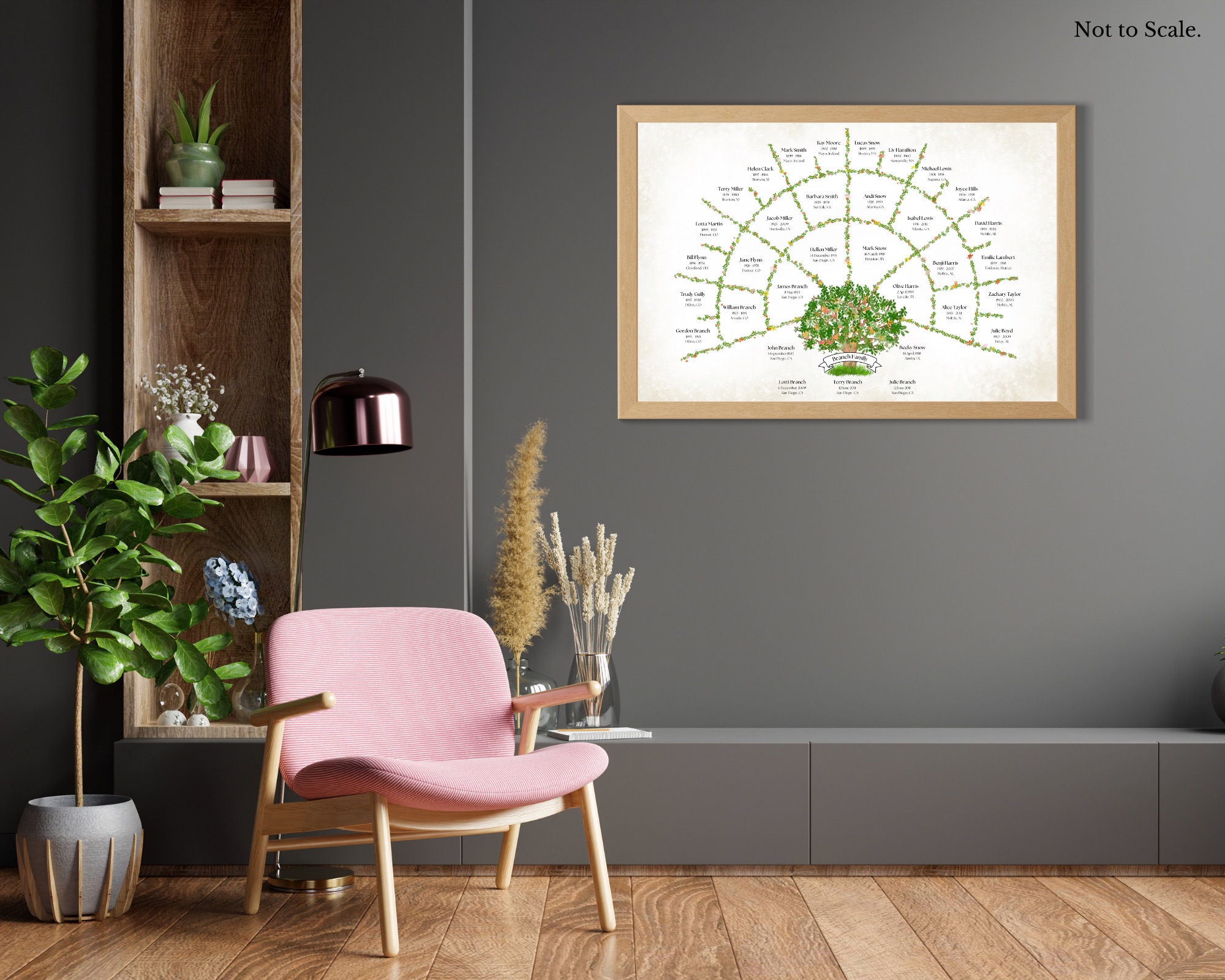
5 Generation Family Tree

6 Generation Family Tree
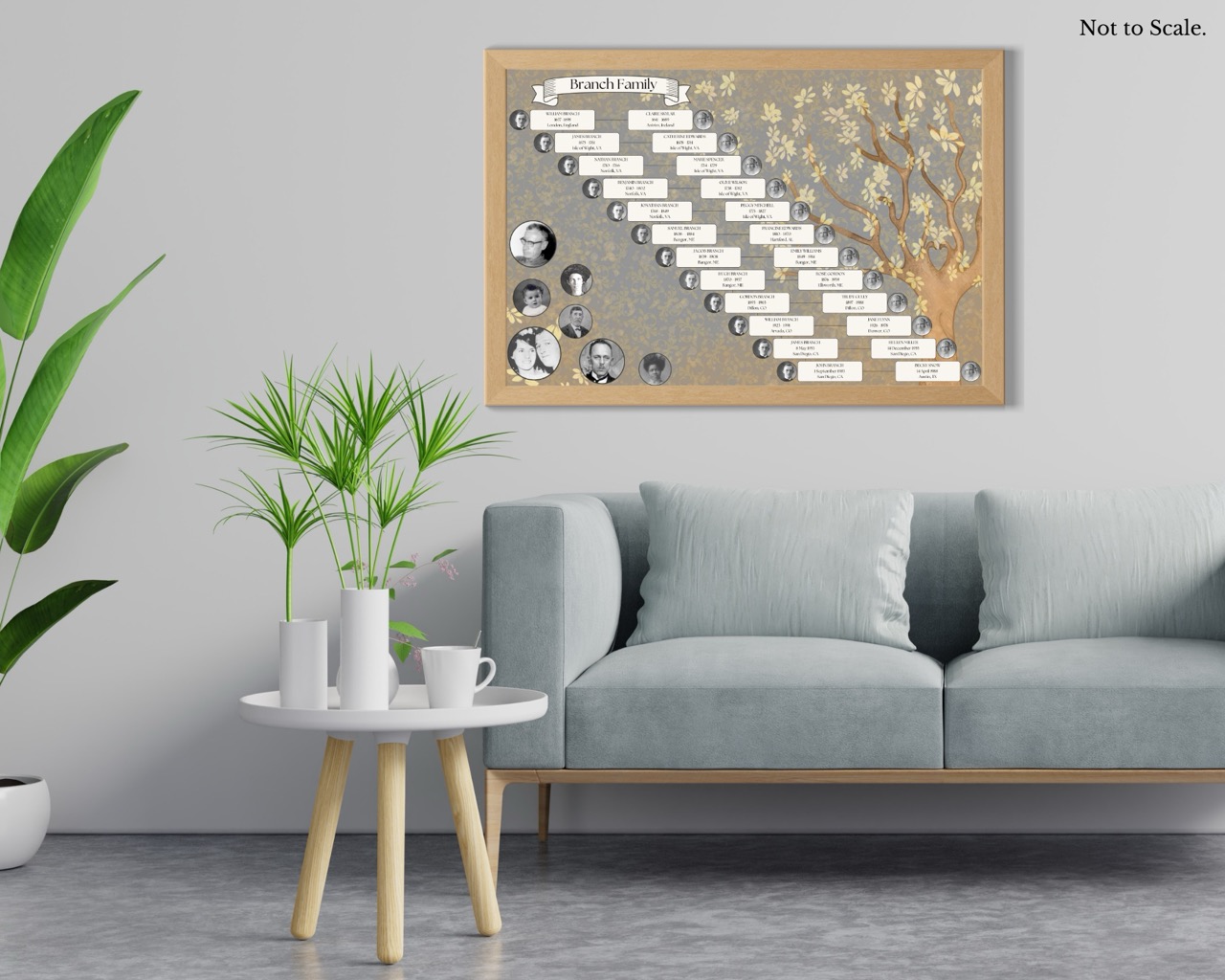
12 Generation Photo Chart

5 Generation Descendant Chart
1. Getting Started
- Create a free or Pro Canva account.
- Open your template.
- The top page contains tips and can be deleted.
- The second page is your family tree.
Need a template? Choose from the 5 generation, 9 generation, or 12 generation layouts depending on how far back your research goes, or celebrate your ancestry all year long with the family history calendar.
2. Basic Editing
- Click a box to select it. Once selected, you can style the box, move it, delete it or copy and paste it.
- Double click the text within the box to change the text and style it.
- You can resize the boxes by dragging the handles.
- Some items may be grouped or locked to keep them aligned, select the items and click ‘ungroup’ or the lock icon from the pop up menu.
- To remove a photo from a frame right click, and select ‘detach image’.
3. Advanced Editing
- To align boxes: select at least three boxes and click ‘Position’ in the menu bar.
- Sometimes objects will try to snap into place. Press the ‘Command’ (Mac) / ‘Alt’ (PC) key to avoid snapping.
- Press ‘Shift R’ to show the ruler. Guides can be created by dragging your cursor from the ruler onto your document.
- To condense paragraphs: highlight your text and select ‘Spacing’ (three little lines with an arrow) in the menu bar.
- For photo trees: upload your photos into Canva, then drag them straight from the sidebar onto the frames. Double click on the photo to move it within the frame. Before uploading photos, check the guide on preparing photos for family tree charts to make sure your images are the right size and resolution.
- To make the background more transparent, click on it, select the checkered icon at the top of your workspace, and adjust the slider.
4. Tips
- Canva auto saves. Once you exit your document any edits you have made are not reversible.
- Any item (font, element, etc.) with a crown is for Pro Canva users only.
- Drag the slider on the bottom right of your workspace to zoom in or out.
- Delete pages by selecting the trash icon in the top right above the document.
- You can get a 30-day free trial of Canva Pro.
5. Printing
- Your template has a 2:3 printing ratio.
- To download to your computer select ‘Share’ > ‘Download’ > ‘File Type’ > ‘Pages’ > ‘Download’.
- Take your template to your favorite printer or use code “MORETHANABRANCH10” for 10% off, and free shipping, for orders over $49 at Prints of Love when you use my link.
- Free Canva users: Download as a PDF Print. At the printer select 24 x 16 in (61 x 41 cm) or 30 x 20 in (76 x 51 cm).
- Canva Pro users: Download as ‘PNG’, and move the slider to the right to increase image quality. At the printer select up to 60 x 40 inches (152 x 102 cm).
- For a full breakdown of paper types, sizes, and framing options, visit the guide on printing your family tree poster.
Prefer to skip printing altogether? The printed family tree poster service handles everything for you.
6. Keyboard Shortcuts
- Undo: Command-Z / Ctrl-Z
- Redo: Shift-Command-Z / Ctrl-Y
- Paste: Command-V / Ctrl-V
- Duplicate: Command-D / Ctrl-D
- Ruler: Shift-R
7. Photo Cards
- A red border indicates that elements of your design extend beyond the printable safe zone.
- The background is locked to prevent it from moving.
- To print in Canva, select ‘SHARE’ > ‘PRINT WITH CANVA’ > ‘FOLDED CARDS’. Make your paper selection and continue to Checkout.
- To print outside of Canva, download your design as a PDF Print to your computer.
8. Family History Website
- Rename your website in the menu bar.
- To add a page, click on the page icon at the top right of your current page.
- To add a section (within a page) click on the section icon to the left of your current section.
- You can add a total of 10 sections per page, and 45 pages per website.
- To upload pictures or video into Canva, drag them directly into the frames from the side menu bar.
- Under ‘Publish Website’ > ‘Settings’ you can password protect your site, change your URL, add an SEO description to each page and adjust other settings.
- If you are unable to publish your website (as a free Canva user), it’s likely that it includes a Pro item.
- Click here for more instructions, videos and tutorials.
Interested in building a family history website? Learn more about the family history Canva website template and what it includes.
Canva Videos
Genealogist Website Walkthrough
Intro
Getting Started with Canva
Canva Tutorial – Lesson 1
Opening Canva for the first time
Canva Tutorial – Lesson 2
Using and customizing templates
Canva Tutorial – Lesson 3
Using search and personalizing the editor
Canva Tutorial – Lesson 4
Uploading and using photos
Canva Tutorial – Lesson 5
Using and editing elements
Canva Tutorial – Lesson 6
Finding fonts and using text
Canva Tutorial – Lesson 7
Uploading and editing video and audio
Canva Tutorial – Lesson 8
Sharing and collaborating on designs
Canva Tutorial – Lesson 9
Saving and organizing documents
Canva Tutorial – Lesson 10
What’s next?
Once your chart is complete and ready to print, the guide on printing your family tree poster walks you through every option from home printing to professional poster services.