
Adding Photos to Genealogy Charts
How to Make a Family Tree
Adding family portraits to your genealogy chart brings your family tree to life. Whether you’re creating a direct lineage chart or a multi-generational template, well-prepared photos make your final chart look polished, professional, and meaningful.
This guide will show you how to digitize old family photos, crop, edit, and organize them so they are ready for your family tree template.

5 Generation Photo Chart

12 Generation Photo Chart
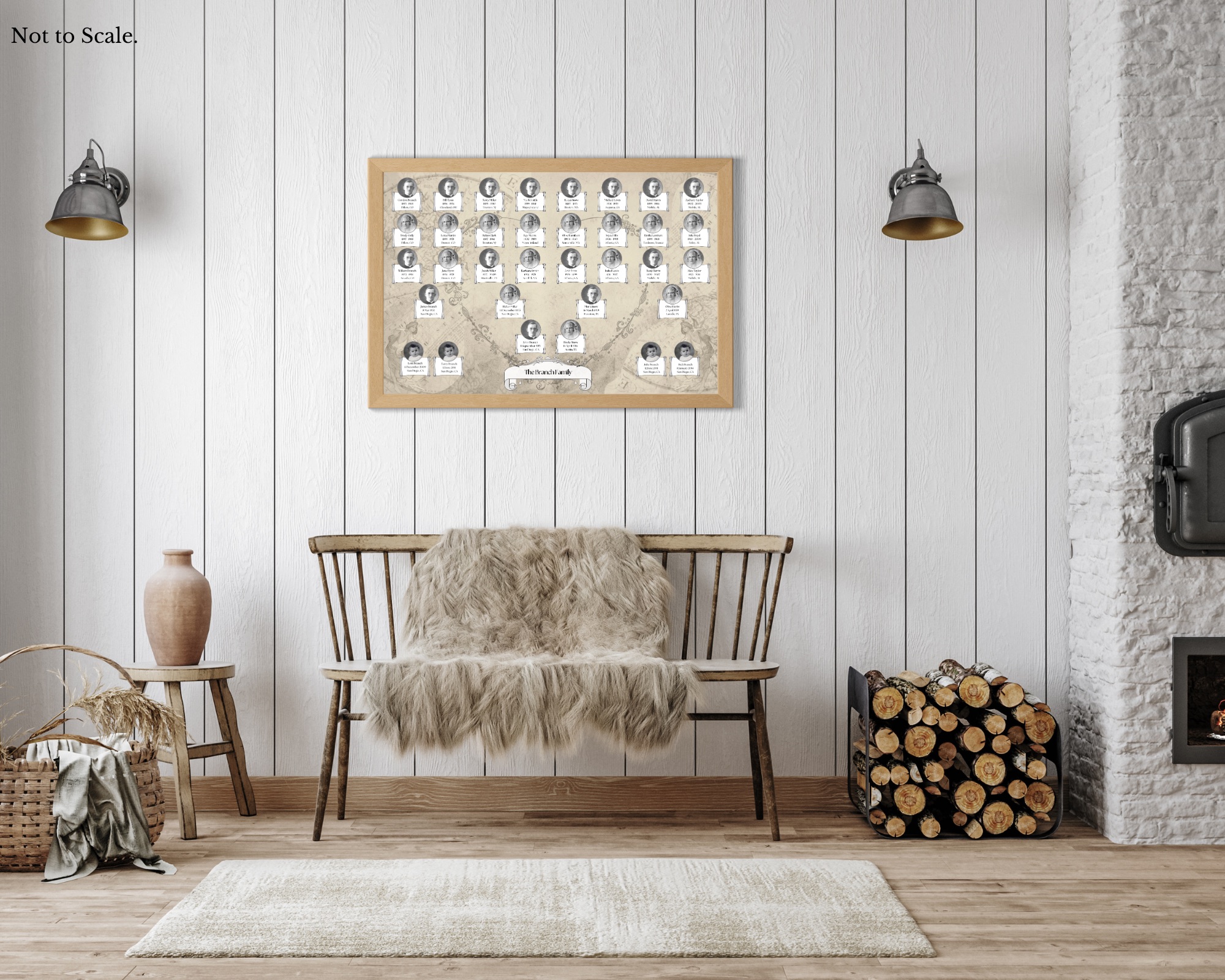
5 Generation Photo Chart
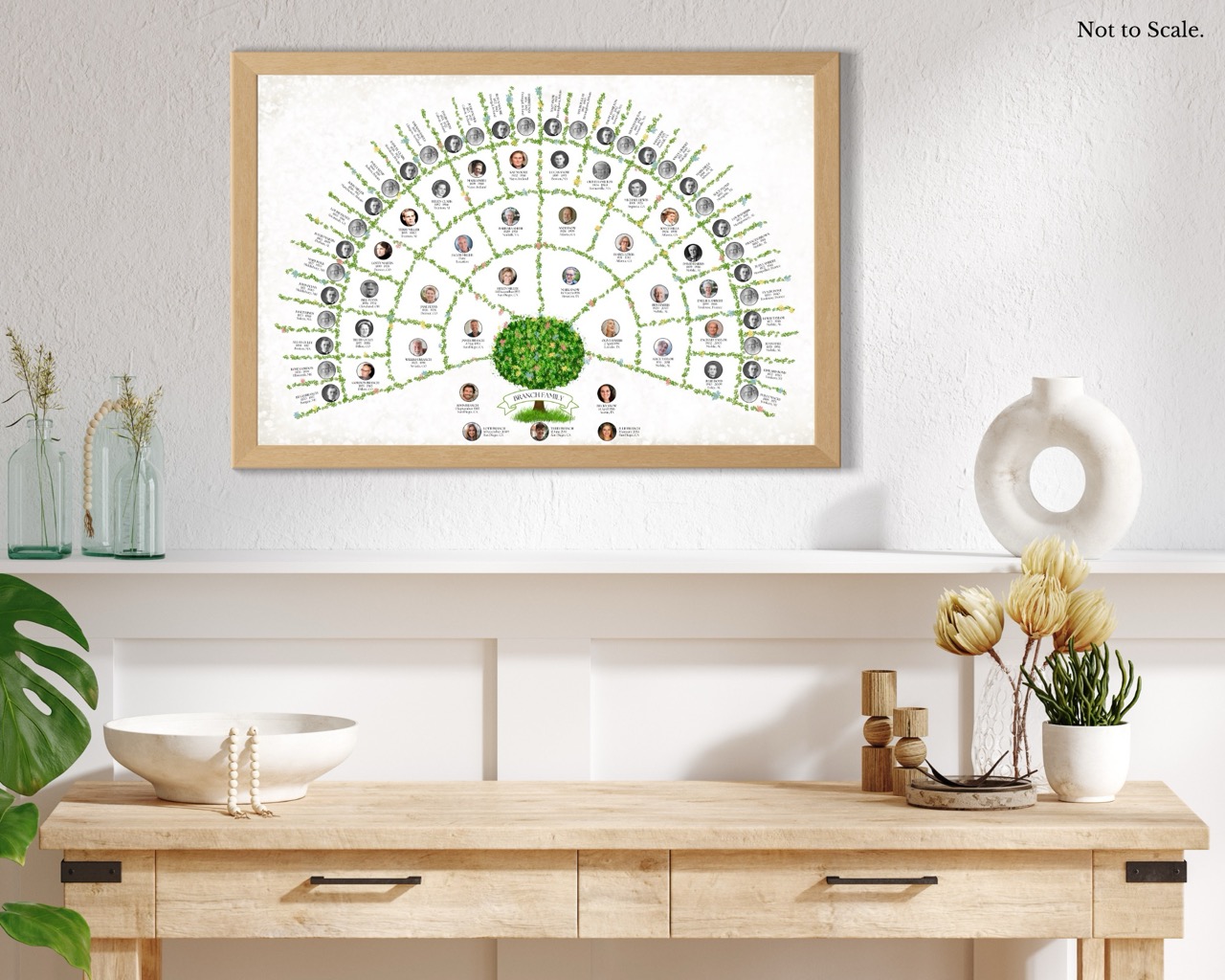
6 Generation Photo Chart
1. Why Preparing Photos Matters
When creating a family tree chart, images add an extra layer of connection. But old photographs can be fragile, low-resolution, or difficult to fit neatly into a template. Preparing your photos in advance helps:
- Ensure clarity and resolution for printing
- Keep a consistent style across generations
- Make uploading to your Canva family tree template smooth and easy
By taking the time to properly prepare your photos, you’ll save time and avoid frustrations later in the design process.
2. Digitize Old Family Photos
Options for Digitizing:
- Flatbed Scanner: Provides the best quality. Scan at 300 DPI or higher to ensure crisp images for large family tree posters.
- Phone Scanning Apps: Apps like Google PhotoScan or Adobe Scan can quickly capture photos, remove glare, and automatically correct perspective.
- Professional Scanning Services: If you have very fragile or valuable photos, professional scanning ensures they are preserved in the highest quality.
Tips:
- Handle photos with clean, dry hands to avoid smudges.
- Label each file clearly with the person’s name and birth year for easy organization.
3. Crop and Resize Your Photos
Once digitized, your photos need to be adjusted to fit your family tree template.
Cropping:
- Focus on the person’s face, since small headshots work best in templates.
- Maintain a consistent shape (circle, square, or rectangle) across all portraits for a uniform look.
Resizing:
- For Canva templates, images around 800×800 pixels usually work well, but larger is better if you plan to print.
- Keep the same aspect ratio to avoid stretching or distortion.
Browse the family tree chart templates with portraits to find a layout that suits your photo collection.
4. Edit and Enhance Photos
Old photos may have scratches, discoloration, or faded edges. Simple edits can dramatically improve the final chart.
Editing Tips:
- Brightness & Contrast: Adjust to make faces visible and clear.
- Color Correction: Restore faded colors or convert to black-and-white for a consistent look.
- Background Removal (Optional): For a modern look, remove busy backgrounds using Canva’s background remover (pro only) or other photo editing software.
Consistency is key. Try to make all portraits visually similar in style so your genealogy chart looks cohesive.
5. Organize Your Photos
Before uploading photos to your family tree template:
- Create a dedicated folder with labeled files, like Jane_Smith_1880 or John_Smith_1855.
- Match each photo to the correct ancestor in your spreadsheet or family tree data file.
- Keep a backup of your edited photos in case you need to adjust them later.
This organization makes it easy to upload images quickly and ensures you don’t accidentally mix up generations.
6. Upload to Your Family Tree Template
After preparing your images:
- Open your Canva family tree template.
- Drag and drop each photo into the corresponding spot.
- Adjust size and placement as needed, making sure the face is centered and clearly visible.
Pro tip: Use the same shape and size for all portraits in the template to maintain a clean, professional look.
Don’t have a template yet? The 5 generation family tree chart and the 12 generation family tree chart are both popular choices for portrait-style layouts.
7. Tips for Printing
- High-resolution images look best when printing large genealogy posters.
- Avoid enlarging small images too much. They may appear blurry.
- Consistency in photo style and tone improves overall readability and visual appeal.
Ready to get started? Explore the full collection of printable family tree chart templates and bring your family photos to life.